

Introduction
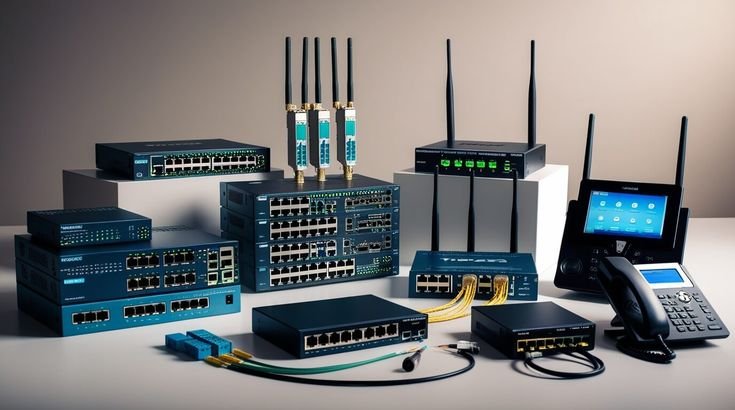
A reliable home network has become an essential part of modern living. Whether you work remotely, attend online classes, stream movies, play online games, or connect smart home devices, a properly configured home network ensures fast, stable, and secure internet access. As the number of internet-connected devices in homes continues to grow, setting up a network correctly is more important than ever.
A home network connects multiple devices, such as computers, smartphones, tablets, smart TVs, gaming consoles, printers, security cameras, and smart speakers, allowing them to communicate with each other and access the internet through a single connection.
This guide explains everything beginners need to know about setting up a home network, including the required equipment, installation steps, security best practices, troubleshooting tips, and recommendations for maintaining a fast and reliable connection.
What Is a Home Network?
A home network is a system that connects multiple devices within a home using either wired (Ethernet) or wireless (Wi-Fi) connections. It allows devices to share internet access, files, printers, and other resources while providing communication between connected devices.
Most modern home networks use a combination of wired and wireless connections for flexibility and performance.
Benefits of a Home Network
Setting up a proper home network offers several advantages.
Internet Sharing
Multiple devices can access a single internet connection simultaneously.
File Sharing
Computers and storage devices can share files across the network.
Device Communication
Smart TVs, printers, security cameras, and other smart devices communicate efficiently.
Better Productivity
A stable network supports remote work, video conferencing, and online learning.
Smart Home Integration
Connect and manage smart lights, thermostats, speakers, and security systems from one network.
Essential Equipment for a Home Network
Before setting up your network, ensure you have the necessary hardware.
Internet Service
Choose a reliable Internet Service Provider (ISP) that offers suitable speeds for your household.
Modem
The modem connects your home to your ISP’s internet service.
Some internet providers supply a modem as part of the service.
Router
The router distributes internet access to all connected devices through Wi-Fi or Ethernet.
Modern routers often include advanced security, parental controls, and multiple frequency bands.
Ethernet Cables
Ethernet cables provide stable wired connections for:
- Desktop computers
- Gaming consoles
- Smart TVs
- Network storage devices
Wired connections generally offer faster speeds and lower latency than Wi-Fi.
Wi-Fi Devices
Common wireless devices include:
- Smartphones
- Tablets
- Laptops
- Smart speakers
- Smart home devices
Understanding Router Placement
Router location greatly affects wireless coverage.
For best performance:
- Place the router near the center of your home.
- Keep it elevated on a shelf or table.
- Avoid placing it inside cabinets.
- Keep it away from thick walls and metal objects.
- Maintain distance from microwaves and cordless phones.
- Avoid placing it directly on the floor.
Proper placement improves signal strength throughout the home.
Step-by-Step Home Network Setup
Step 1: Connect the Modem
Connect the modem to your ISP’s cable or fiber line.
Turn on the modem and wait until all required status lights become stable.
Step 2: Connect the Router
Use an Ethernet cable to connect the modem’s Ethernet port to the router’s WAN or Internet port.
Power on the router.
Allow several minutes for startup.
Step 3: Connect Your Computer
Connect using:
- Wi-Fi
- Ethernet cable
Open a web browser.
Access the router setup page using the address provided by the manufacturer.
Step 4: Configure Internet Settings
Most modern routers automatically detect internet settings.
If required, enter the information provided by your ISP.
Step 5: Create a Wi-Fi Network
Choose:
- Network Name (SSID)
- Strong Wi-Fi password
Avoid using personal information in the network name.
Step 6: Enable Security
Use modern wireless encryption.
Recommended:
- WPA3
- WPA2 (if WPA3 is unavailable)
Avoid older security methods like WEP.
Step 7: Connect Devices
Connect:
- Smartphones
- Tablets
- Computers
- Smart TVs
- Printers
- Gaming consoles
- Smart home devices
Verify that each device has internet access.
Wired vs Wireless Connections
Wired Ethernet
Advantages:
- Faster speeds
- Lower latency
- More stable connection
- Better for gaming
- Better for video editing
- Reliable file transfers
Disadvantages:
- Requires cables
- Less flexibility
Wireless Wi-Fi
Advantages:
- Mobility
- Easy installation
- Supports many devices
- Ideal for phones and tablets
Disadvantages:
- Signal interference
- Reduced speed over distance
- Higher latency
Many households benefit from using both wired and wireless connections.
Home Network Security Tips
Security should be a priority for every home network.
Change Default Router Password
Never keep the factory administrator password.
Create a strong password containing:
- Uppercase letters
- Lowercase letters
- Numbers
- Special characters
Update Router Firmware
Manufacturers regularly release updates that improve:
- Security
- Stability
- Performance
Check for updates periodically.
Enable WPA3 Encryption
WPA3 offers stronger protection than previous wireless security standards.
Disable WPS
Although convenient, WPS can introduce security risks.
Disable it unless absolutely necessary.
Create a Guest Network
Allow visitors to use a separate Wi-Fi network.
Benefits include:
- Better privacy
- Improved security
- Isolated devices
Enable Firewall Protection
Most routers include built-in firewalls.
Keep them enabled unless instructed otherwise.
Optimizing Wi-Fi Performance
Improve wireless performance with these techniques.
Reduce Interference
Keep the router away from:
- Microwaves
- Bluetooth devices
- Baby monitors
- Cordless phones
Use Dual-Band or Tri-Band Routers
Modern routers support:
- 2.4 GHz
- 5 GHz
- 6 GHz (newer models)
Each frequency offers different coverage and speed characteristics.
Restart Your Router Occasionally
Restarting clears temporary issues and refreshes network performance.
Limit Connected Devices
Disconnect unused devices to reduce network congestion.
Upgrade Older Equipment
Replacing outdated routers can improve speed and reliability.
Connecting Smart Home Devices
Many households now include:
- Smart lights
- Security cameras
- Smart locks
- Voice assistants
- Smart TVs
- Smart thermostats
Organize these devices carefully and keep their firmware updated to maintain security.
Common Home Network Problems
Slow Internet
Possible causes:
- Too many connected devices
- Weak Wi-Fi signal
- ISP issues
- Old router
Wi-Fi Dead Zones
Solutions:
- Move the router
- Add a Wi-Fi extender
- Install a mesh Wi-Fi system
Frequent Disconnects
Possible reasons:
- Firmware updates needed
- Signal interference
- Hardware failure
- ISP problems
Devices Cannot Connect
Check:
- Password accuracy
- Router restart
- Device compatibility
- Network settings
Home Network Maintenance
To keep your network running smoothly:
- Restart networking equipment occasionally.
- Update router firmware.
- Remove unused connected devices.
- Change passwords periodically.
- Review connected devices for unknown activity.
- Monitor internet speed.
- Back up important router settings if supported.
Regular maintenance helps prevent performance and security issues.
Choosing the Right Router
When purchasing a router, consider:
- Wi-Fi standard
- Coverage area
- Number of connected devices
- Security features
- Ethernet ports
- USB ports
- Parental controls
- Guest network support
- Quality of Service (QoS)
- Mesh compatibility
Choosing the right hardware ensures better long-term performance.
Future of Home Networking
Home networking continues evolving through new technologies.
Future trends include:
- Wi-Fi 7 adoption
- Faster fiber internet
- AI-powered network optimization
- Smarter home automation
- Better cybersecurity
- Increased cloud integration
- Improved mesh networking
- Lower latency connections
These developments will support the growing number of connected devices in modern homes.
Frequently Asked Questions
What equipment do I need for a home network?
You typically need an internet connection, a modem, a router, Ethernet cables (if using wired connections), and devices such as computers, smartphones, or smart TVs.
Where should I place my router?
Place it near the center of your home, elevated, and away from walls, metal objects, and electronic devices that may cause interference.
Should I use Ethernet or Wi-Fi?
Ethernet provides faster and more stable performance, while Wi-Fi offers greater convenience and mobility. Many homes use both.
How can I secure my home network?
Use WPA3 or WPA2 encryption, change the default administrator password, update router firmware regularly, disable WPS, and create a guest network for visitors.
How often should I restart my router?
Restarting your router every few weeks or whenever you experience connectivity issues can help maintain stable performance.
Conclusion
A well-designed home network provides the foundation for fast, reliable, and secure internet access throughout your home. By choosing quality networking equipment, placing your router in the right location, securing your wireless network, and performing regular maintenance, you can enjoy smooth streaming, online gaming, remote work, video conferencing, and smart home connectivity. Whether you are setting up your first home network or upgrading an existing one, following these best practices will help you maximize performance, protect your devices, and prepare your network for future technologies such as Wi-Fi 7, fiber internet, and advanced smart home systems.


Leave a Reply